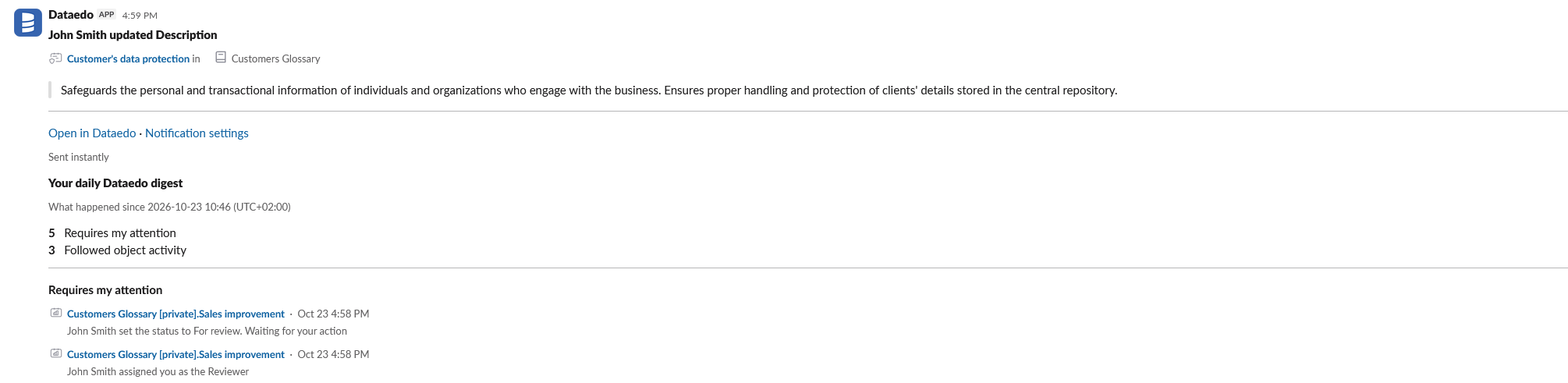
Slack notifications
Enabling notifications in Slack for all users requires Admin permissions in Dataedo and permission to create and install apps in your Slack workspace.
You can set up a Slack app that will deliver notifications as direct messages in Slack, in parallel with email and in-app notifications. The app can also deliver users' digest. Slack messages cover the same events as the other channels. Setting this up requires configuration in Slack and in Dataedo.
Dataedo can be connected to one Slack workspace. Notifications are sent only as direct messages to individual users — posting to Slack channels is not supported.
For a user to receive Slack notifications, all of the following conditions must be met:
- the administrator has completed the Slack and Dataedo configuration described below
- the email address on the user's Slack account matches their email in Dataedo (see How users are matched)
- the user has Slack enabled for the relevant event types in Profile > Notifications. Slack is turned off by default for all event types and for the digest, so each user has to turn it on.
- the user has permissions to the object the notification concerns (Slack notifications follow the same visibility rules as all other channels)
Configuration
Creating the Slack app
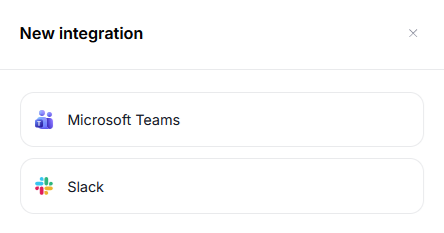
- In Dataedo Portal, navigate to Settings > System Settings > Messaging, click + Add integration, and choose Slack.
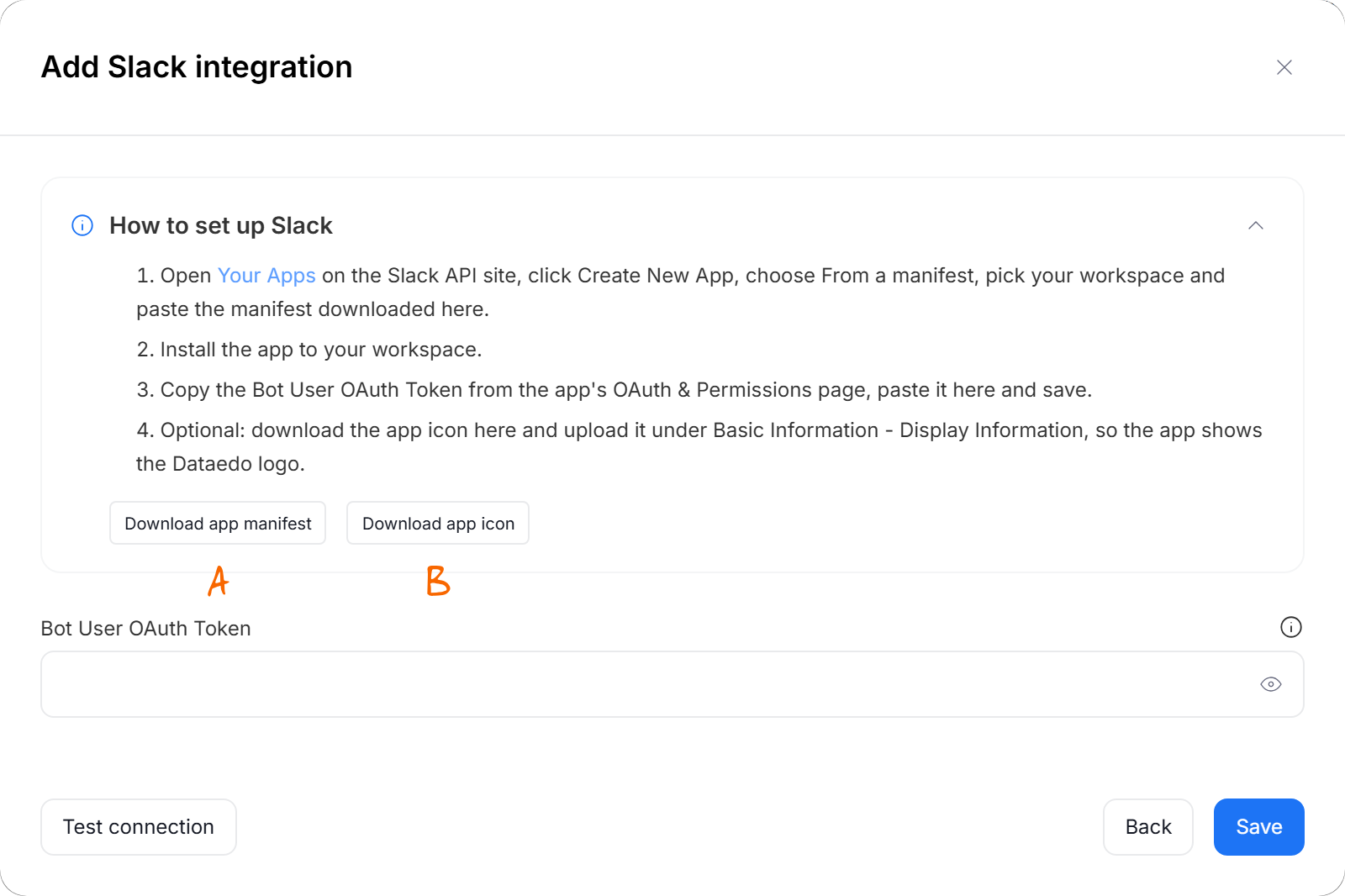
- In the Add Slack integration window, click Download app manifest [A]. Optionally, click Download app icon [B] as well — this will give you the Dataedo logo, which you can set as the profile picture of your Slack app.
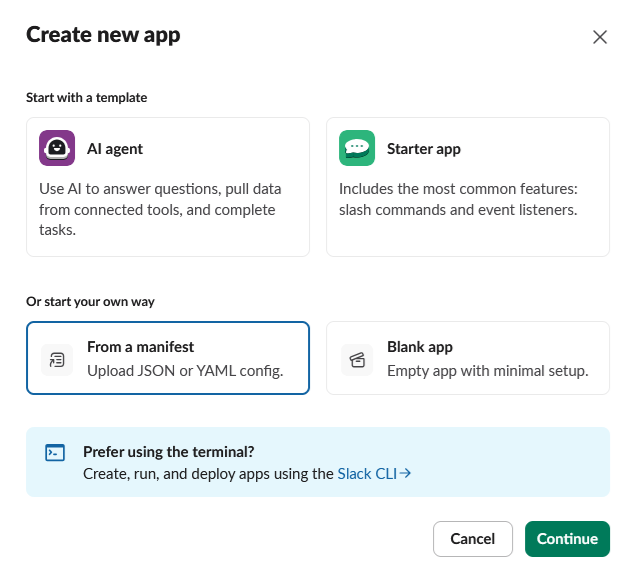
- Open Your Apps on the Slack API site and click Create an App. In the Create new app window, choose From a manifest and click Continue.
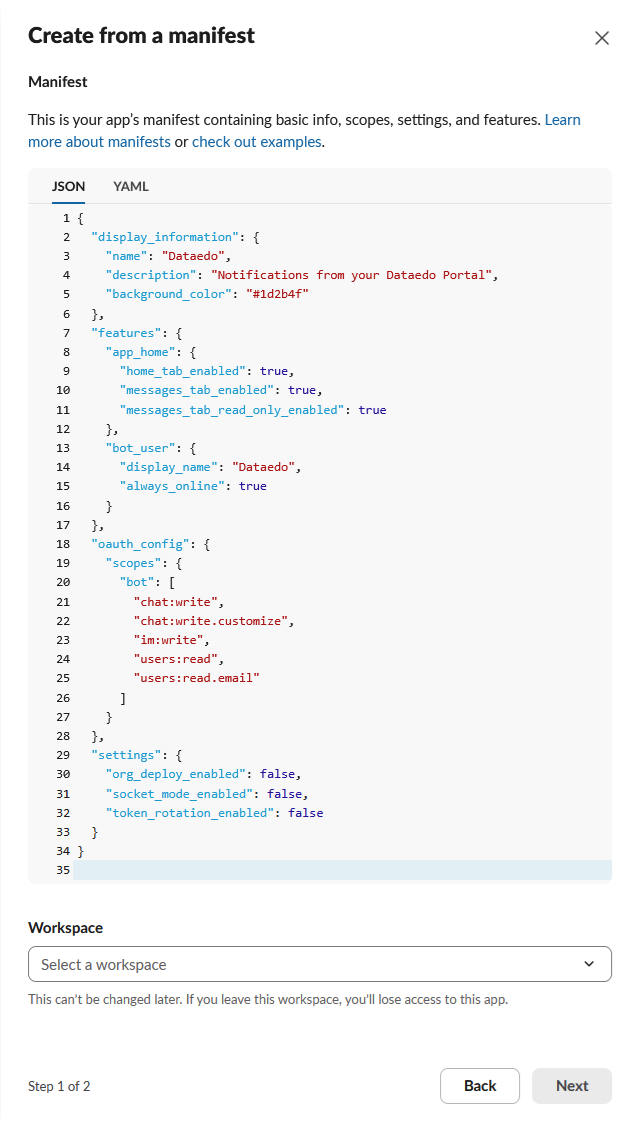
- Paste the contents of the downloaded manifest into the JSON tab, select your Workspace, and click Next. Keep in mind that the workspace cannot be changed later.
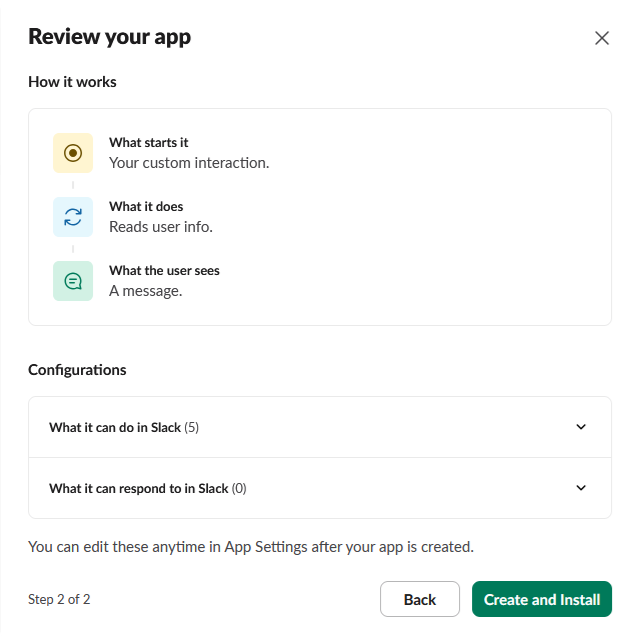
- Review the app and click Create and Install.
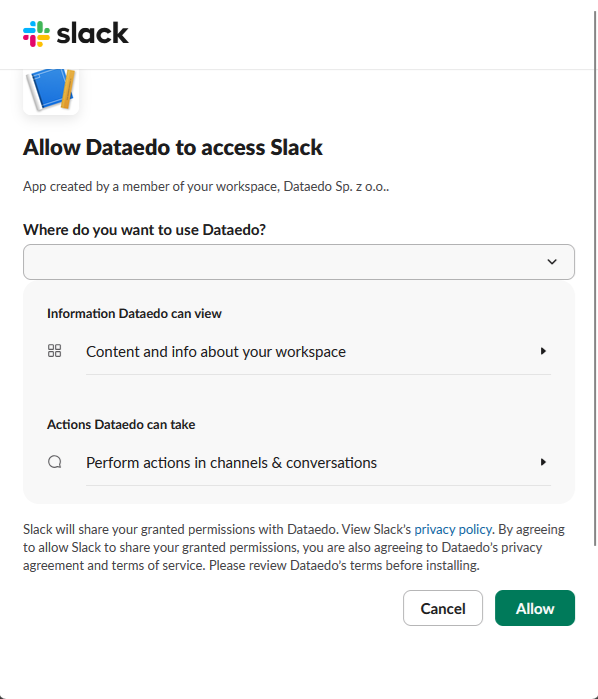
- Slack asks you to allow Dataedo to access your workspace. Select the workspace and click Allow.
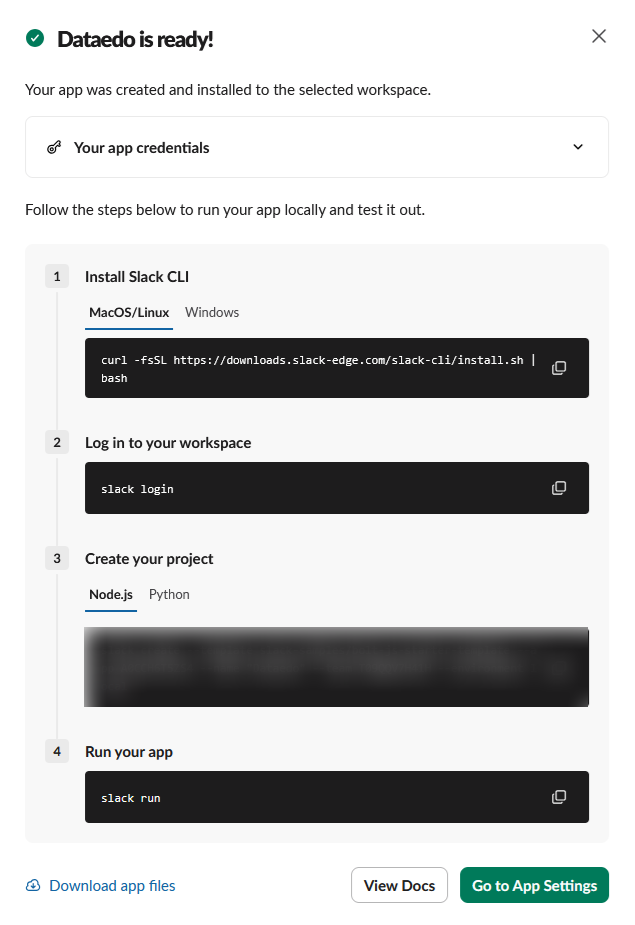
- Once the app is created and installed, click Go to App Settings. You can skip the Slack CLI steps shown in this window — they are not needed for Dataedo.
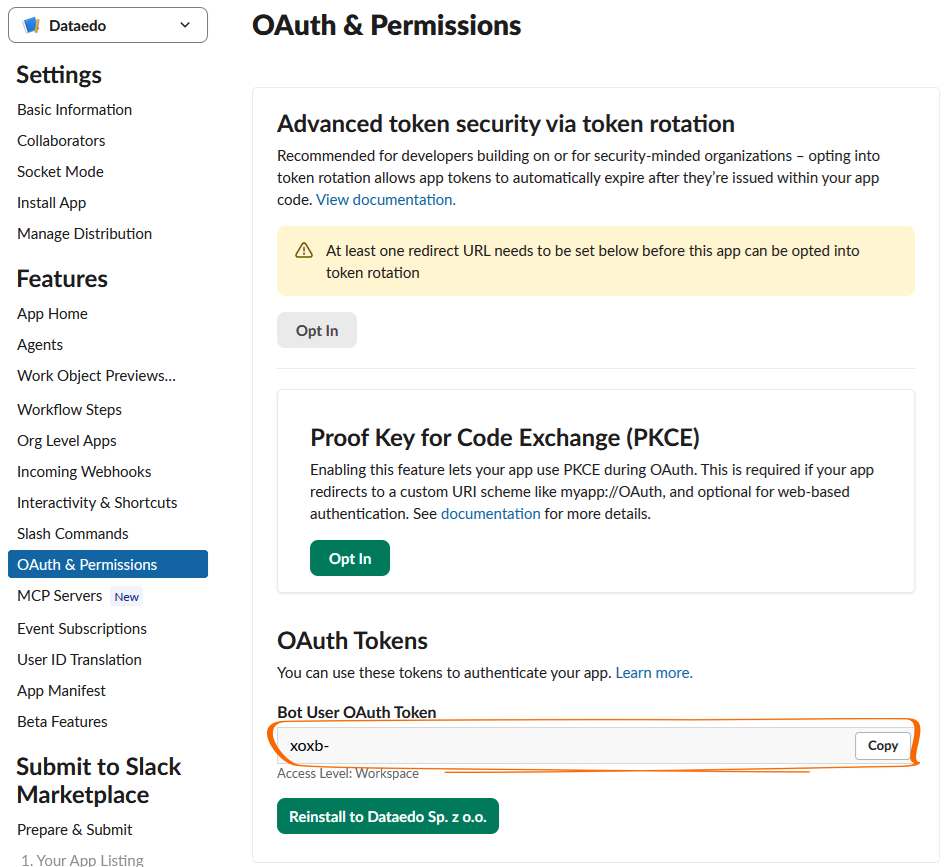
- In the app's settings, open OAuth & Permissions and copy the Bot User OAuth Token. It starts with
xoxb-.
- Optionally, go to Basic Information > Display Information and upload the icon you downloaded from Dataedo, so the app shows the Dataedo logo in the Slack sidebar and in its About tab. Messages from Dataedo show the Dataedo logo even if you skip this step.
Connecting Slack in Dataedo
- Back in the Add Slack integration window in Dataedo, paste the token into the Bot User OAuth Token [A] field.
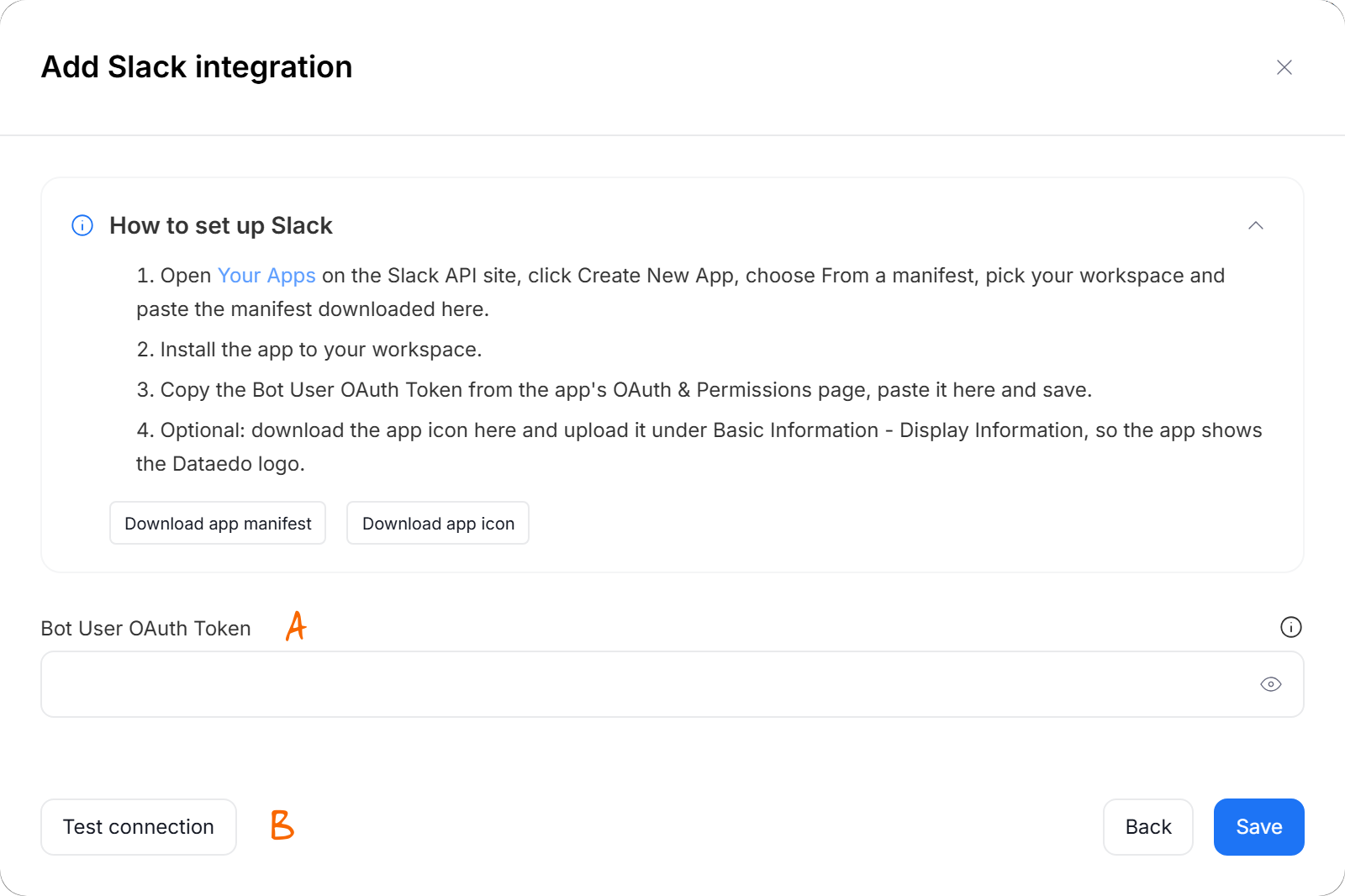
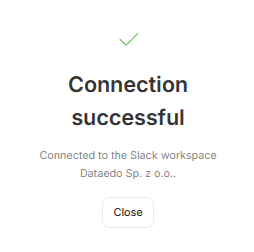
- Click Test connection [B]. If the token is correct, Dataedo shows the name of the connected Slack workspace. This step helps you ensure that everything is set up correctly.
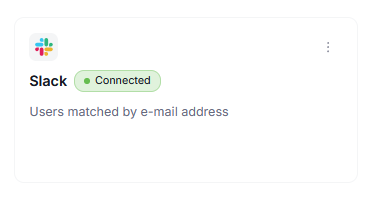
- Save your configuration. The integration appears as a card on the Messaging tab, showing whether it is Connected.
How users are matched
Users do not have to install or link anything themselves. The first time Dataedo sends a Slack notification to a user, it looks for a member of your workspace with the same email address and remembers the match. If the user's email address in Dataedo changes, they are matched again.
A user does not receive Slack notifications when:
- their Dataedo profile has no email address, or no member of the Slack workspace uses it
- the Slack account with their email address is deactivated
- another active Dataedo user has the same email address — to make sure nobody receives someone else's notifications, neither of them is matched
Users who cannot be reached see a message in Profile > Notifications explaining why. Most of these cases are solved by making sure the user has the same, unique email address in Dataedo and in Slack.
Managing the integration
The menu (⋮) on the Slack integration's card lets you:
- Edit the token
- Test connection with the saved token
- Send me a test message — Dataedo sends a direct message to your own Slack account, which lets you check that your email address is matched correctly
- download the app manifest and icon again
- Remove the integration — this removes the saved token and stops Slack notifications. Pending Slack notifications stay queued and are delivered once a new token is saved.
After upgrading Dataedo, download the app manifest again, paste it under App Manifest in your Slack app's settings, and reinstall the app. Newer versions of Dataedo may need additional permissions in Slack.
Slack messages
Notifications and the digest arrive as direct messages from the Dataedo app.
Each notification describes what happened and to which object, followed by two links: Open in Dataedo takes you straight to the object or change it concerns, and Notification settings opens your notification preferences. The digest summarizes the events since the previous one, grouped into the same sections as your notification settings.