Notifications
Notifications are available only in Dataedo Portal.
Dataedo notifications are meant to help you stay informed and never miss crucial updates to the objects you are following or that are instrumental to your work.
How it works
Following is an important feature of our notification system. In principle, you receive notifications only for changes in objects you are following, which keeps your notification dashboard free of unnecessary clutter. By default, following an object is a conscious decision requiring your explicit input — you can follow an object using the bell icon next to its name. If you wish, you can also set up automatic following of objects under certain circumstances. Both are described in Notification settings and following.
Notifications can reach you through several channels:
- In-app — in the notification panel in Dataedo Portal
- Integrations — Microsoft Teams and Slack
- Digest — a daily or weekly summary delivered by email or through an integration
Which channels are available depends on how your administrator has set up notifications. Which events reach you, and through which channels, is up to you — see Notification settings and following.
Notifications from non-followed objects
Some events will trigger a notification even if you do not follow the object they concern. These are events that directly require your attention:
- being mentioned in a comment in an object's community section
- being assigned to a new role or responsibility (e.g., Owner, SME)
- being an assignee of the workflow status an object has just been moved to
Receiving such a notification does not make you a follower of the object — if you want to keep track of it, follow it manually using the bell icon. The one exception is a role assignment if you have turned on Auto-follow objects I'm assigned to.
Notification examples
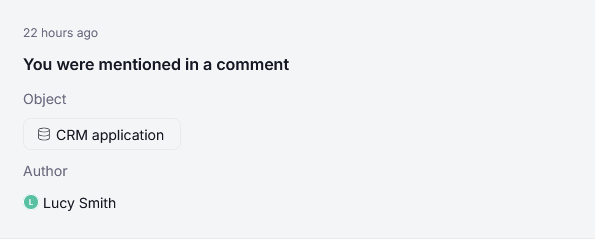
Changes for users with no access
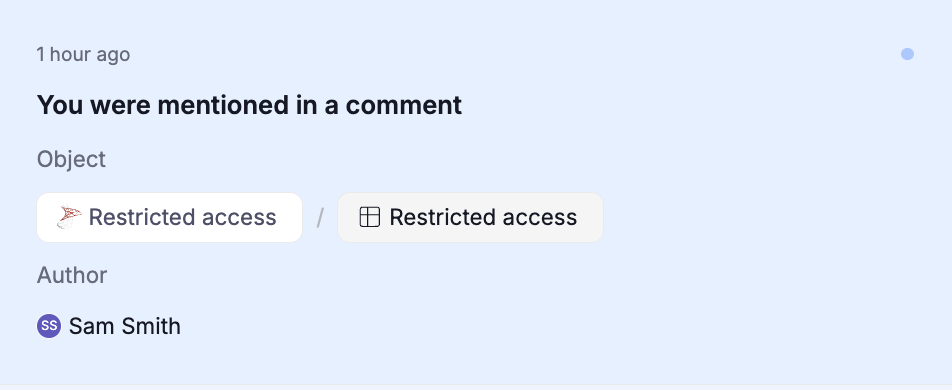
Someone might mention you or assign you a new role on an object you are not currently permitted to view. You will still receive a notification, but it will be anonymized — the object's name is replaced with Restricted access.
If you receive such a notification, we advise you to contact your organization's admin or the person who mentioned you — they might have to grant you sufficient permissions.
Navigating notifications
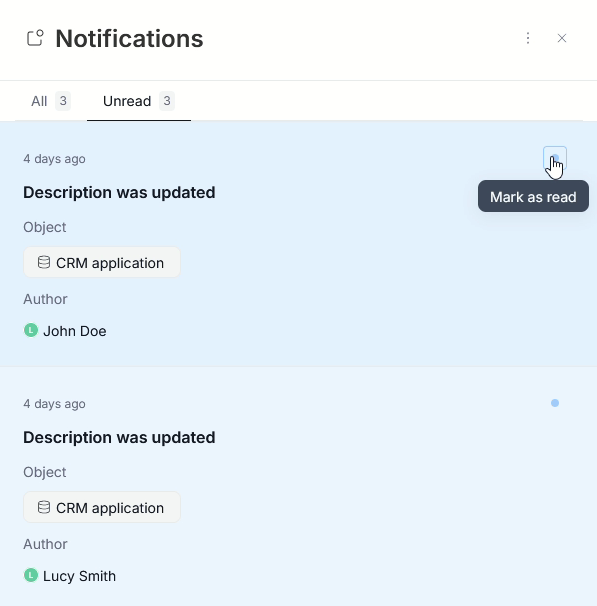
To see your in-app notifications, click the Notifications button at the top of the screen. This opens the notification panel, where you can view either all your notifications or only the unread ones. Notifications are grouped by object — the latest event on an object is shown on top, and the earlier ones are collapsed under an expandable +N updates link. Clicking a notification takes you directly to the change/action it is related to. It also marks the notification as read (if it has not been read already).
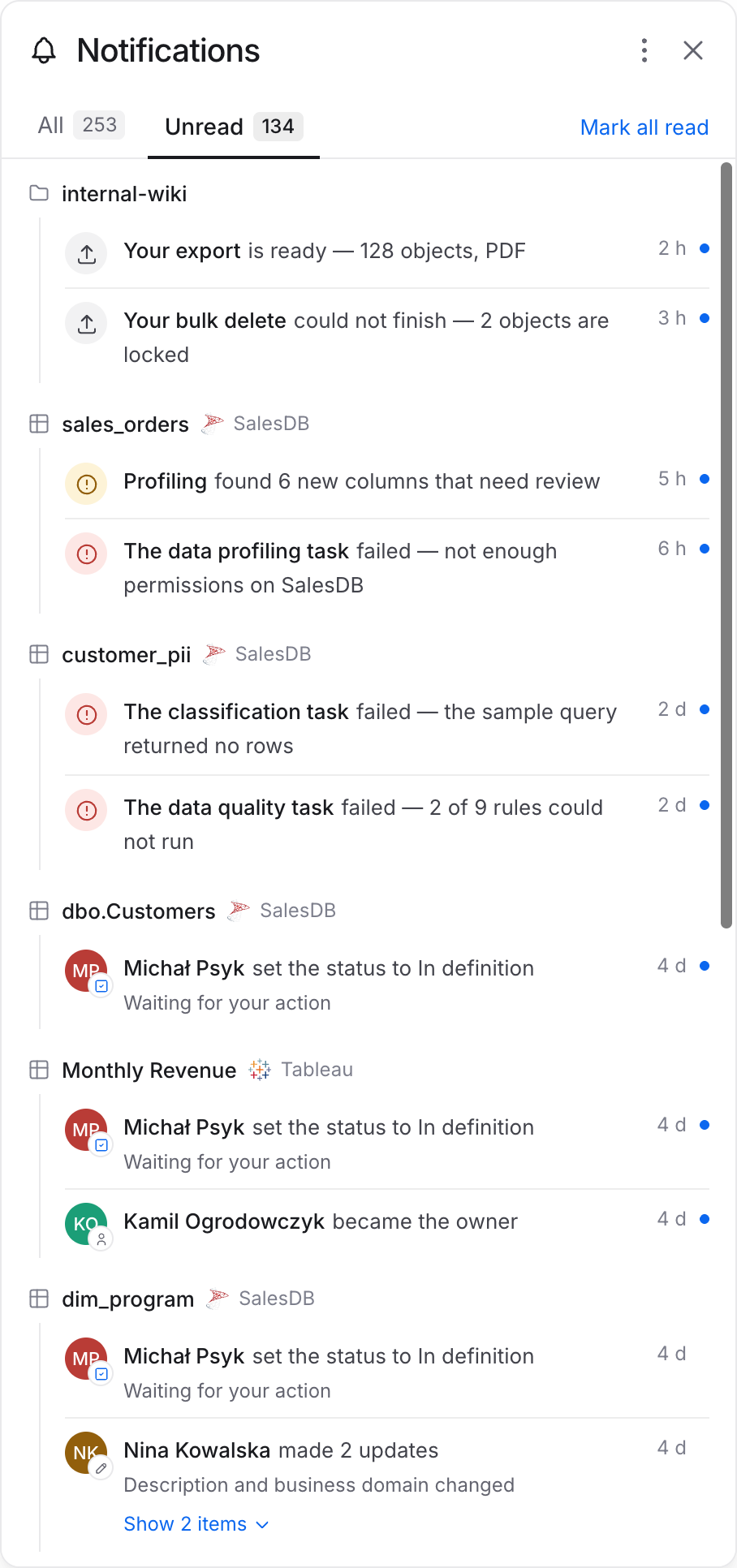
If you want to mark a notification as read without opening it, you can use the small blue dot in its top-right corner.
Notifications Center
You can access the Notifications Center by using the button directly in the notification panel.
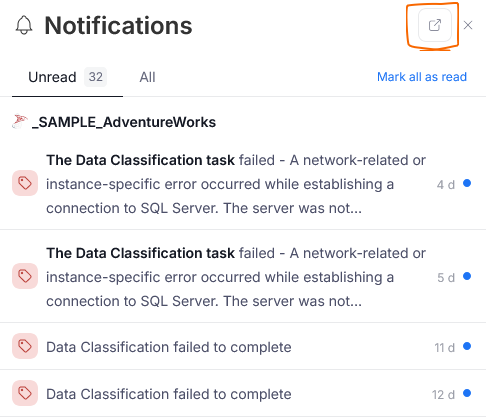
The Notifications Center is the complete record of everything that concerns you directly. It is a catch-all view, where information about the events that can be important to you is gathered regardless of whether you follow a given object. In short, this is the place to go when you suspect you missed something, or when you want to look further back than the panel reaches.
The page offers two views:
- Notified (opened by default) — only the events that reached you through at least one of your channels, including the digest
- All activity — everything recorded for you, including events that none of your channels carried, for example because you turned that event type off. These are marked with a muted speaker icon.
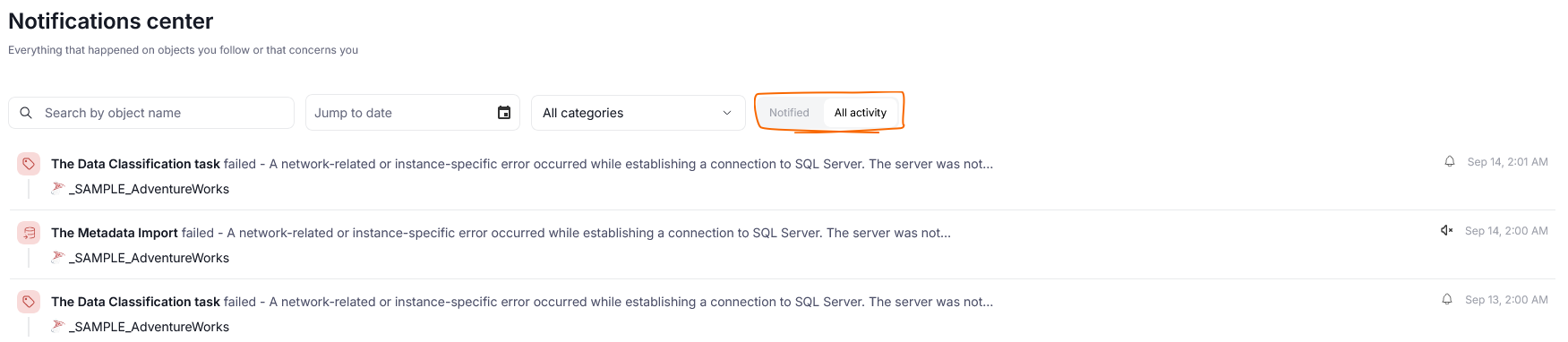
Every entry is structured like a regular notification. Clicking anywhere on an entry takes you straight to what it describes, the same way a notification does.
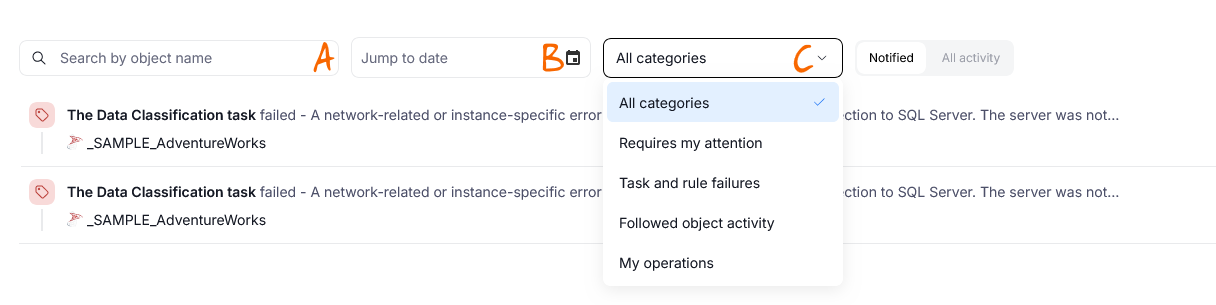
You can also use filters to help you navigate the Notifications Center:
- Search [A] by object name
- Jump to date [B], which lands on the chosen day and shows everything that happened on it or earlier
- a category [C] dropdown, matching the groups from your notification settings
Every digest you receive links back to the Notifications Center as well. Following that link opens the page with the view filtered down to the contents of that one digest.
How far back the page reaches depends on how long activity records are kept in your repository — 180 days by default. See Archiving notifications if you need to change that.
Data Quality Rule Check Failure vs. Task Failure
There are two types of notifications related to Data Quality runs. Since they highlight different potential problems with the same task, you should understand the difference between them.
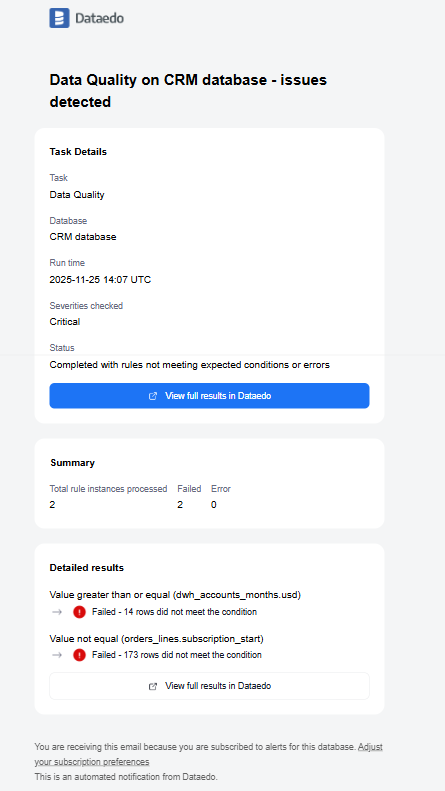
Any user who follows the Rule Instance (directly or through, for example, its table) can receive a Data Quality Rule Check Failure notification. It is triggered when Rule Instances do not meet expected conditions or contain errors at the rule definition level. This notification means that you should inspect both your Rule Instance and the table you applied it to and fix the issue to prevent working with faulty data.
Data Quality Task Failure notifications are visible only to Connection Managers. They are triggered when a scheduled Data Quality task fails.
Data Quality Notifications