Tab Visibility
Assets in Dataedo have their documentable information arranged across a set of tabs. Think about Columns in Table objects, Data lineage, Data Quality, or Schema changes. Not every tab is equally useful to every team, so we offer you a set of options to customize what is visible.
Tab Visibility lets you decide which tabs appear. It works on two levels:
- Admins set the default tabs shown to each user group, per object type, in Catalog Settings.
- Every user can then personalize their own view, overriding those defaults for themselves whenever they like.
How it works
A few rules apply across both levels:
- The Overview and Permissions tabs cannot be hidden. Overview is always visible to everyone; Permissions is visible to admins only.
- Hiding a tab only removes it from the UI. This does not override permissions — the hidden tab's content can still be accessed through a direct link, for example, as long as you have permission to view it.
- Tab visibility is still dictated by permissions and license — for example: Data Quality cannot be set as a visible tab for a User Group that does not have permission to view it; if you have an Essentials license, you will not be able to set visibility for a Data Lineage tab, since it is not covered by your license, etc.
Setting default tab visibility (admins)
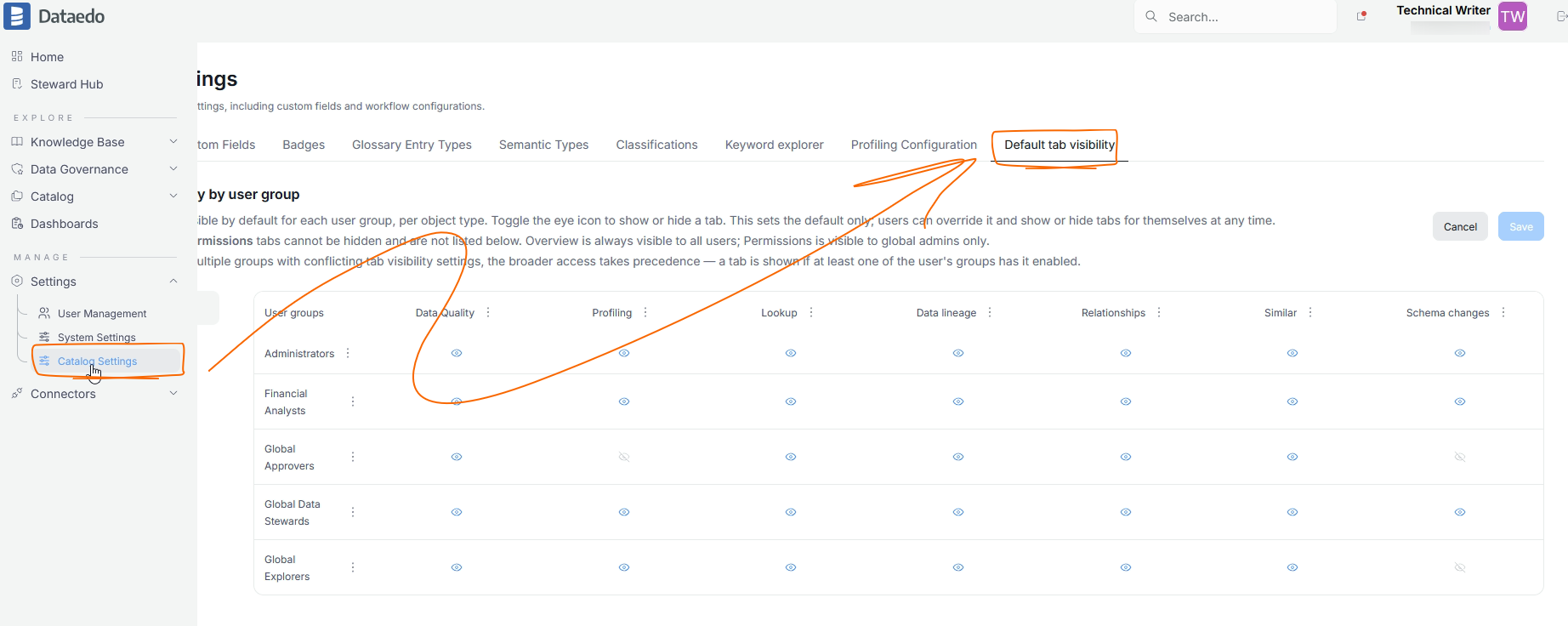
As an admin, you can define what each user group sees out of the box. To do so, navigate to Catalog Settings>Default tab visibility.
You can configure visibility per object type; choose the type you want to modify from the list on the left [A]. The grid on the right [B] is a matrix of tab visibility (columns) for each User Group (rows).
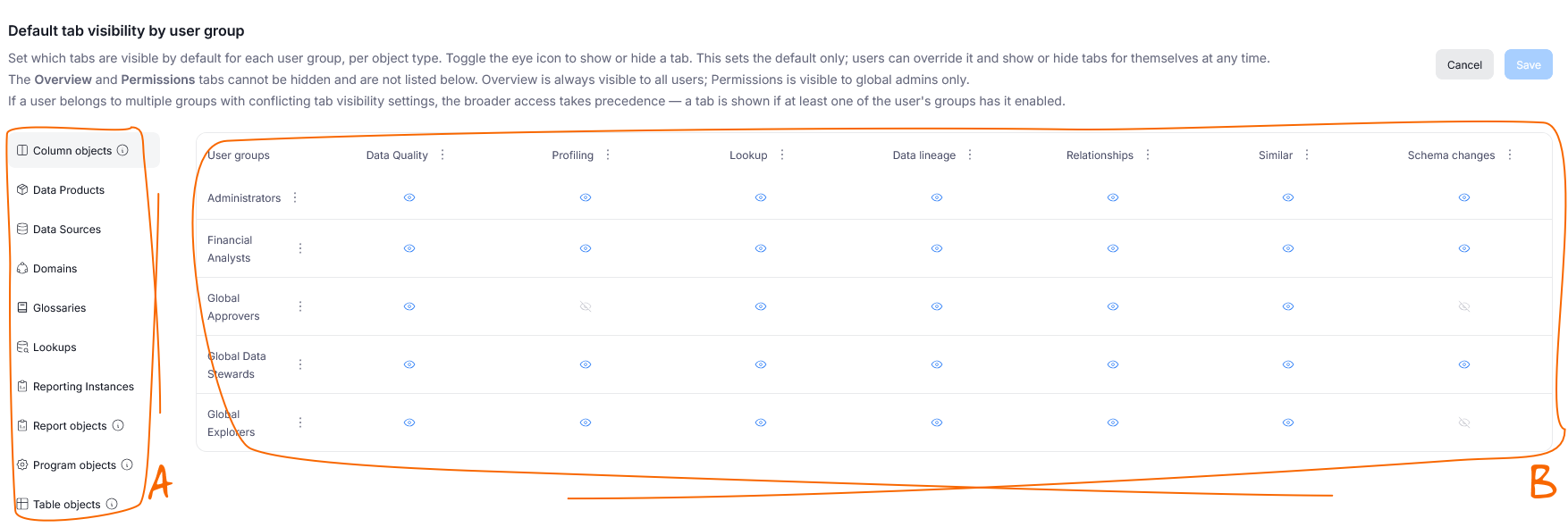
Tab visibility
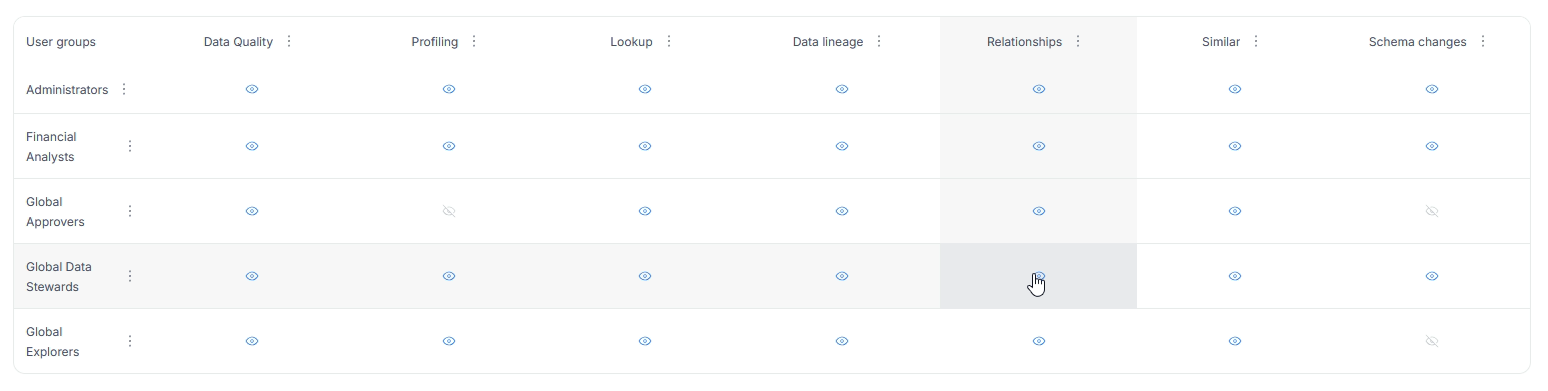
Each cell in the grid holds an eye icon. Click it to toggle a tab on or off for that group:
- A blue, open eye means the tab is visible.
- A grayed-out, crossed eye means the tab is hidden.

When you hover over an icon, the tab and User Group will be highlighted to help you better track which tab you are modifying.
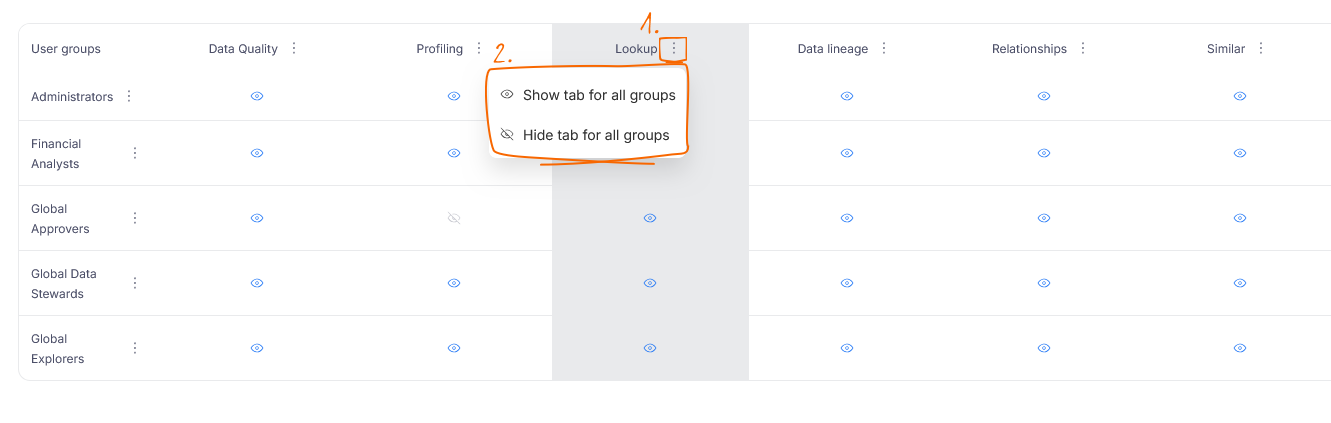
You can also hide or show a certain tab for all users at once. To do so, click the three dots icon [1] next to the tab you want to hide and select the option to either show or hide it [2] for all groups.
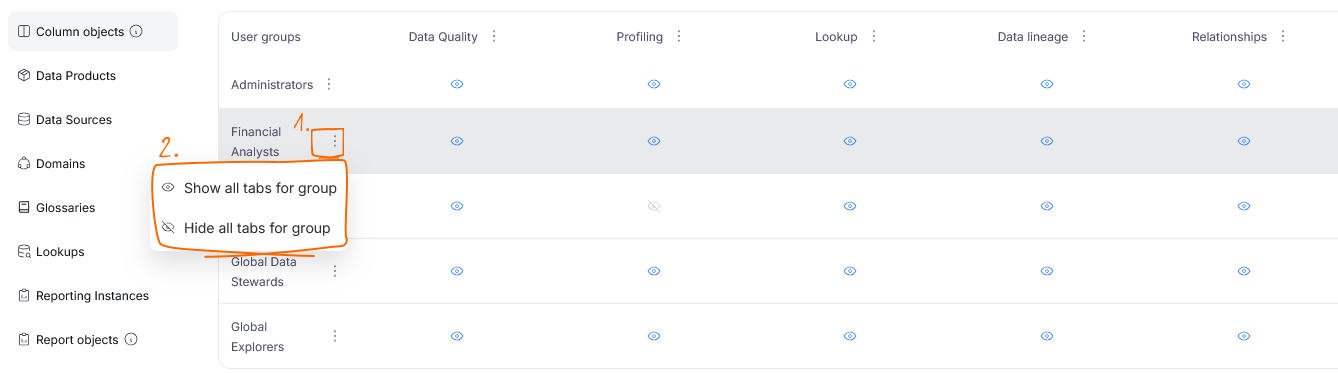
You can do the same for User Groups. Clicking the three dots [1] next to a User Group lets you show or hide [2] all tabs for them at once.
Clashing group privileges
If a user belongs to several groups with different settings, the broader access wins. A tab is shown if at least one of the user's groups has it enabled.
Personalizing your tabs (all users)
As a user, you can override the admin tab visibility settings for yourself. Navigate to the object type you want to modify, and click the Manage tabs visibility button on the rightmost section of the tab bar. If you are an admin, you will have the option to configure tab visibility either only for yourself or for the whole organization; otherwise, you will immediately see the option to modify your personal tab visibility settings.
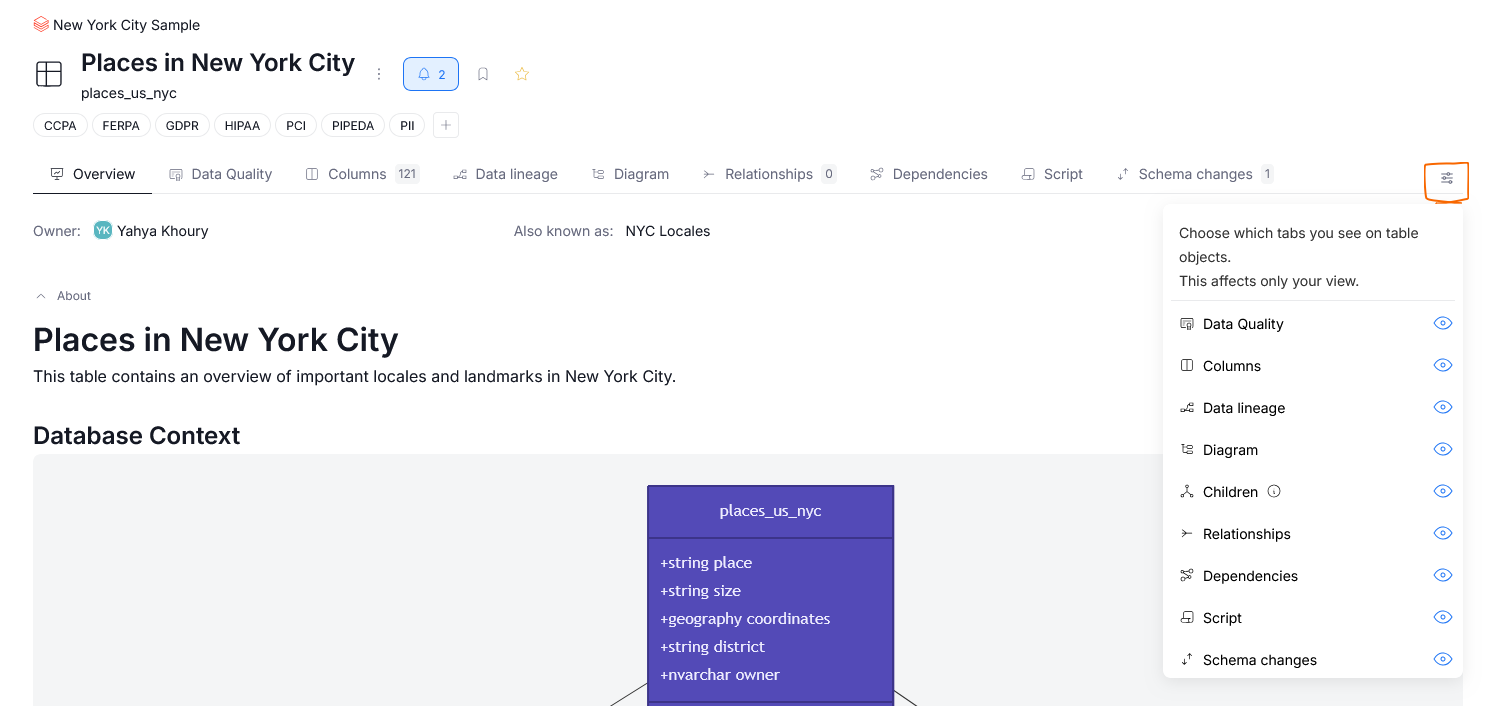
A list appears, each item showing the tab's icon, its name, and an eye toggle on the right.
Click the eye to show (blue, open eye icon) or hide (gray, crossed-out eye) a tab for yourself. Changes are saved automatically.
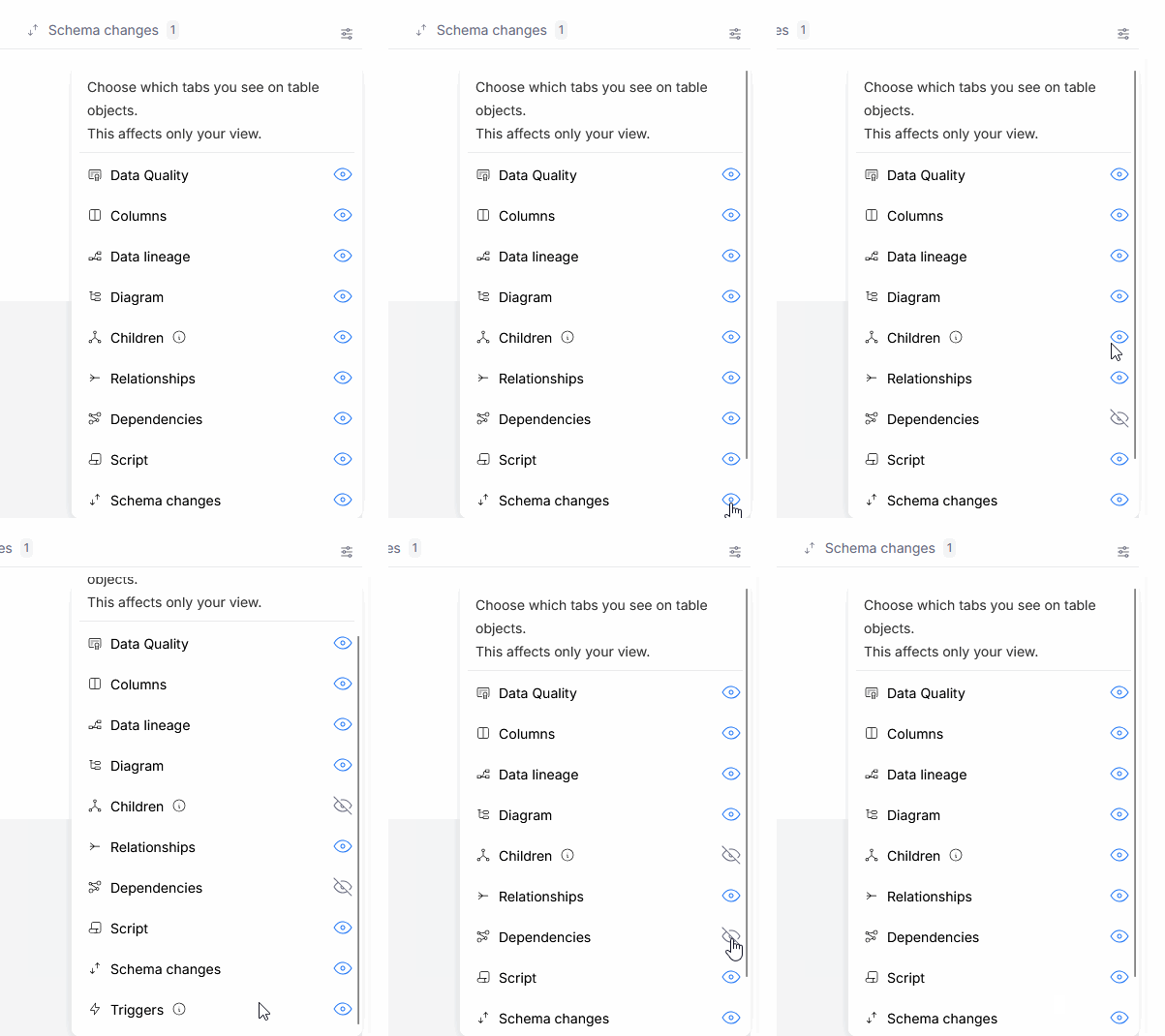
Personal overrides apply to all objects of a given type. For example, if you disable Data Quality from the level of one data source, the Data Quality tab will not be visible in other data sources as well

