SAML Single Logout
Single Logout is configured per SAML provider and is turned off by default.
By default, logging out of Dataedo Portal ends only the Portal session. The session at your identity provider stays active, so clicking the SSO login button again signs the user straight back in without asking for credentials. While useful if every user has their own device, on shared workstations this can create risks, as the previous user's account can be easily accessed by someone else.
Single Logout (SLO) changes that: when a user logs out of Portal, Dataedo also asks the identity provider to end its session. The next sign-in requires credentials again.
Requirements
- A working SAML provider. See Authentication for provider-specific guides.
- An identity provider that publishes a SingleLogoutService endpoint in its metadata (Okta, Entra ID, Keycloak and most others do, but the feature may need to be enabled on their side).
- A Service Provider certificate — most identity providers require the logout request to be signed. Dataedo can generate one for you, or you can upload your own.
Enabling Single Logout
Dataedo setup
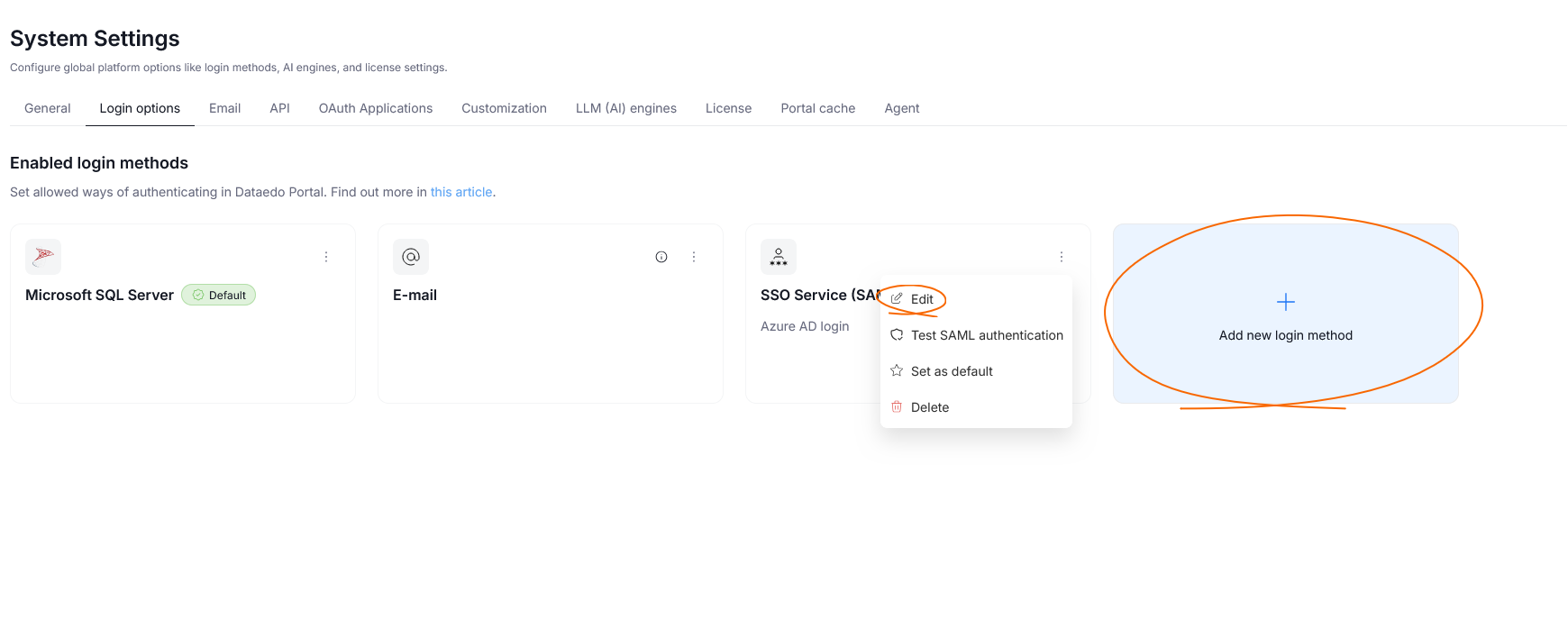
Go to Settings > System Settings > Login options. Open an existing SAML provider, or create a new one.
Select the Enable Single Logout checkbox. When you do, a Service provider certificate section appears.
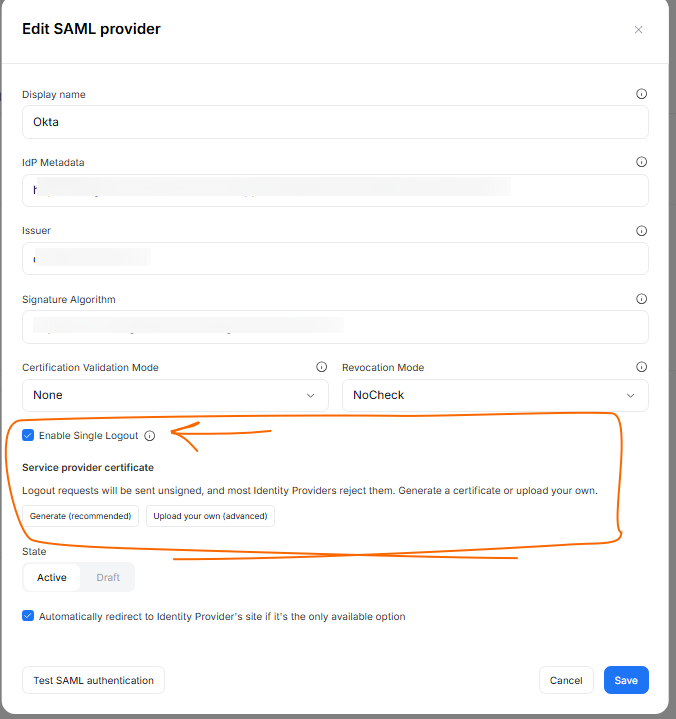
The certificate is used to sign logout requests sent to the identity provider. You have two options:
- [A] Generate (recommended) — Dataedo creates a self-signed certificate valid for 5 years. The certificate is named after the provider's Issuer, so the Issuer field has to be filled in before you try and generate the certificate.
- [B] Upload — supply your own certificate file. See Uploading your own certificate below.

Register the certificate in your identity provider
- Prepare the certificate — either the one you generated in Dataedo, or the one you uploaded manually.
- In your identity provider, upload it to your Dataedo application as the certificate used to verify signed logout requests.
Test
After registering a certificate, you can check whether everything works correctly by using the Test SAML authentication button.
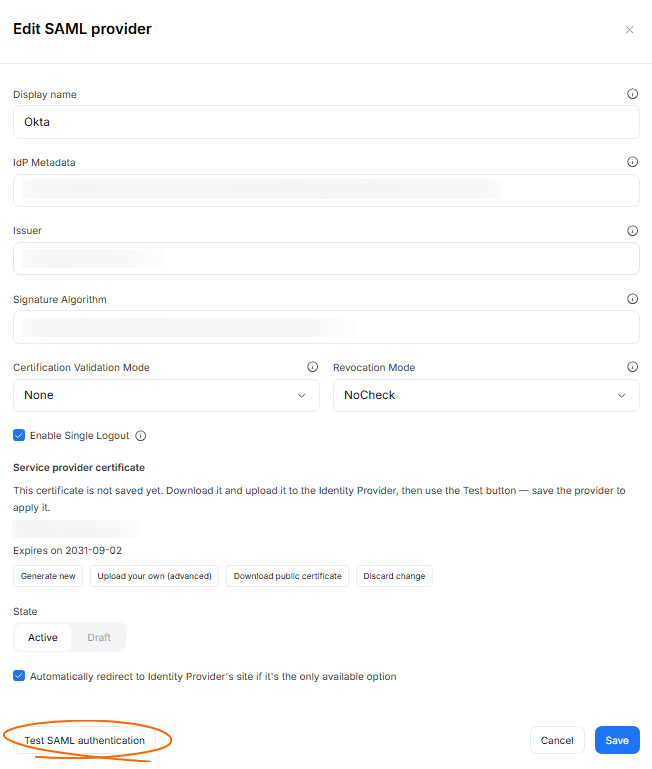
If all tests pass, remember to save the configuration.
After your configuration is saved, you can perform one more test, to check whether everything was configured properly:
- Log in to Portal through SSO.
- Log out using the Portal logout button.
- Click the SSO login option again.
If Single Logout works, the identity provider asks for credentials. If the user is signed back in without being asked, the identity provider session survived and the configuration needs review.
Uploading your own certificate
Use the Upload your own option if your organization issues certificates centrally. Check the certificate requirements below.
Accepted formats:
| Format | Extensions | Password |
|---|---|---|
| PKCS#12 | .pfx, .p12 | Required if the file is password-protected |
| PEM (certificate and private key in one file) | .pem | Only if the private key is encrypted |
- The file must contain both the certificate and its private key. A certificate-only or key-only file is rejected.
- The order of the blocks in a
.pemfile does not matter. - The format is recognized from the file contents, not the extension.
- Encrypted PEM private keys must be in PKCS#8 format. Older OpenSSL-style encrypted keys (for example, from
openssl genrsa -aes256) are not supported.
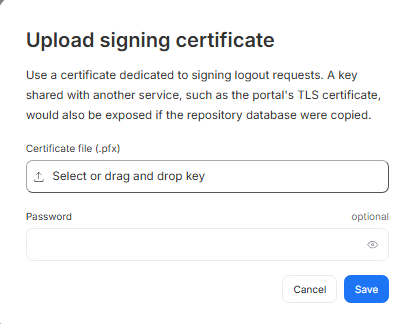
The optional Password field lets you specify the password if your certificate file is protected. Dataedo uses it to open the file and read the private key inside. The password is not stored anywhere after it's used.
If the password is missing or incorrect, Dataedo cannot read the private key and the upload is rejected, even when the file itself is valid.
Certificate expiration
The certificate section shows the subject and expiration date of the current certificate.
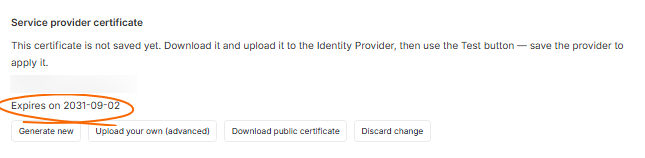
To replace a certificate, simply generate or upload a new one, and make sure to register it in your identity provider as well.
Need help?
If you run into any problems or have questions, reach out to Dataedo support.

