Configuring Dataedo with Keycloak
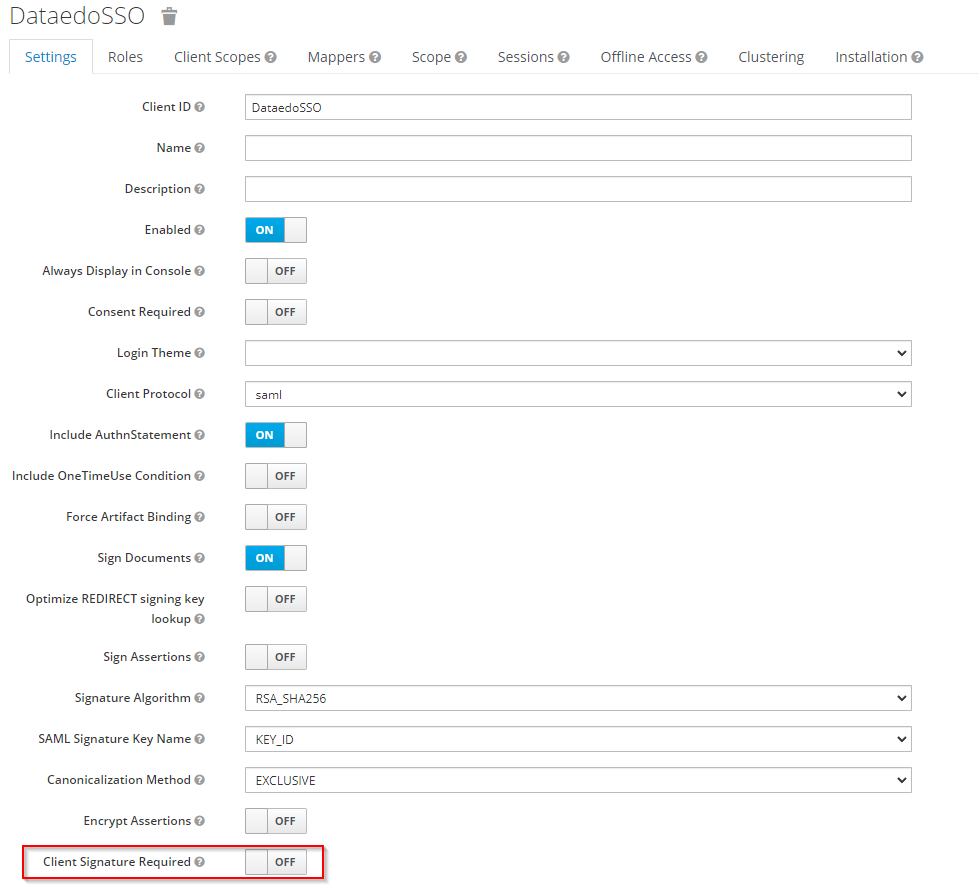
Currently, Keycloak SAML works only with the Client Signature Required option deactivated. We plan to support this option in a future release.
This guide will help you configure Dataedo to work with a SAML identity provider. While this article uses Keycloak as the IdP, similar steps apply to other providers.
Initial Configuration in Keycloak Admin Console
-
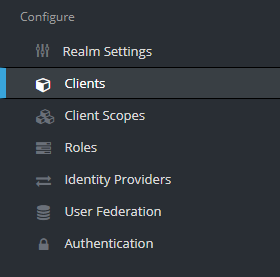
Open the Keycloak Admin Console. Select your realm and navigate to the Clients tab.
-
Click Create to add a new client.

-
In the new window, enter a client ID (choose a name without spaces or special characters), set Client Protocol to
saml, and click Save.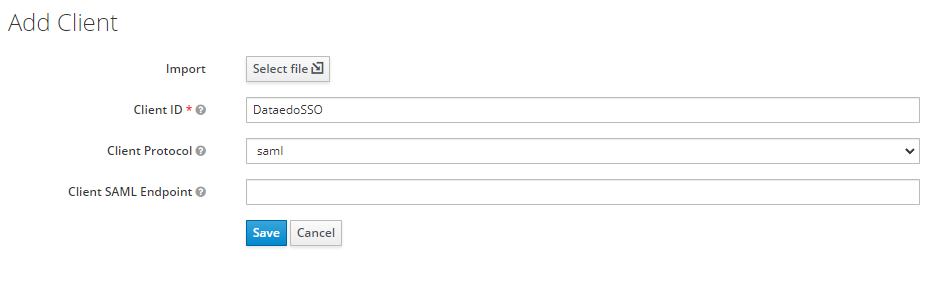
-
On the next screen, disable the Client Signature Required option.
-
Scroll to the Fine Grain SAML Endpoint Configuration section. Enter your Dataedo Portal's URL, appending
/api/api/auth/assertion-consumer. For example:https://YourDataedoURL.com/api/api/auth/assertion-consumer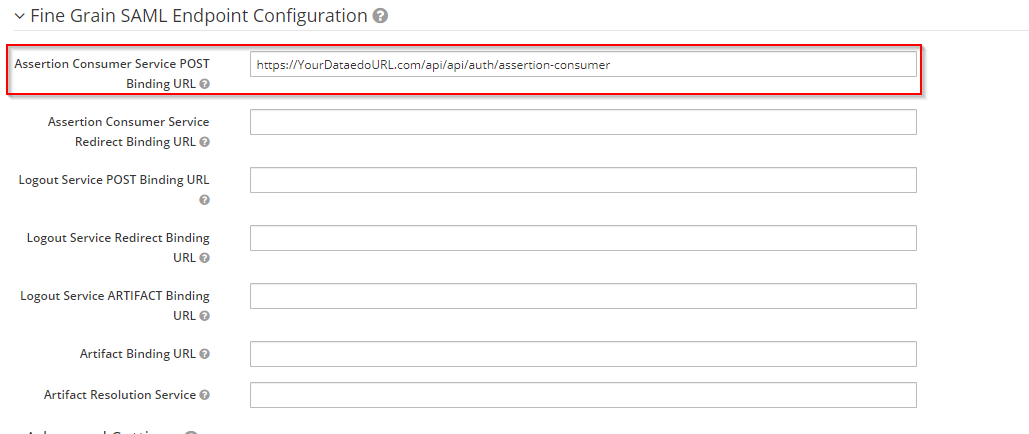
Configuring mappers (optional)
Keycloak's user's name can be used to automatically fill in the user's Name attribute in Dataedo upon login, if it was previously blank.
In order for this function to work, you have to configure Keycloak properly first. Start by navigating to Clients, and choosing the client you configured for Dataedo from the Clients list.

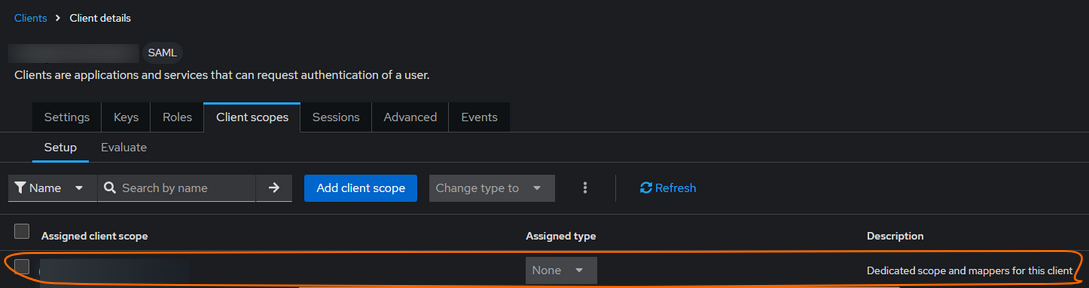
When you open the client view, navigate to the client scopes tab, and click on the client's dedicated mapper scope.
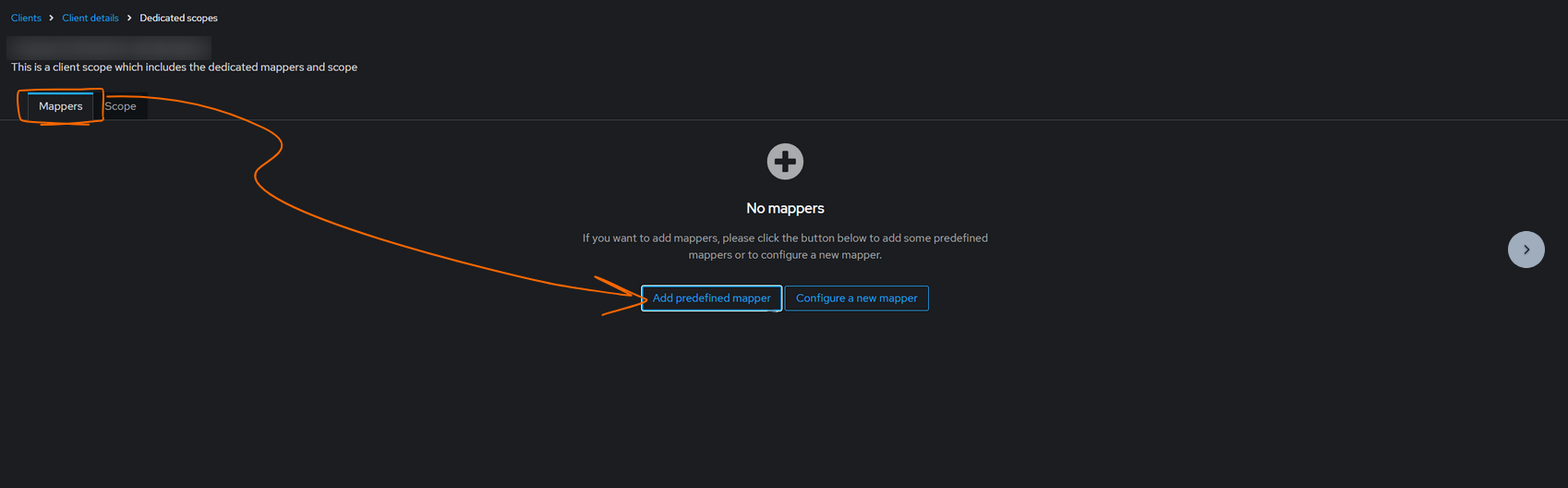
Open the Mappers tab, and choose the option to add a predefined mapper.
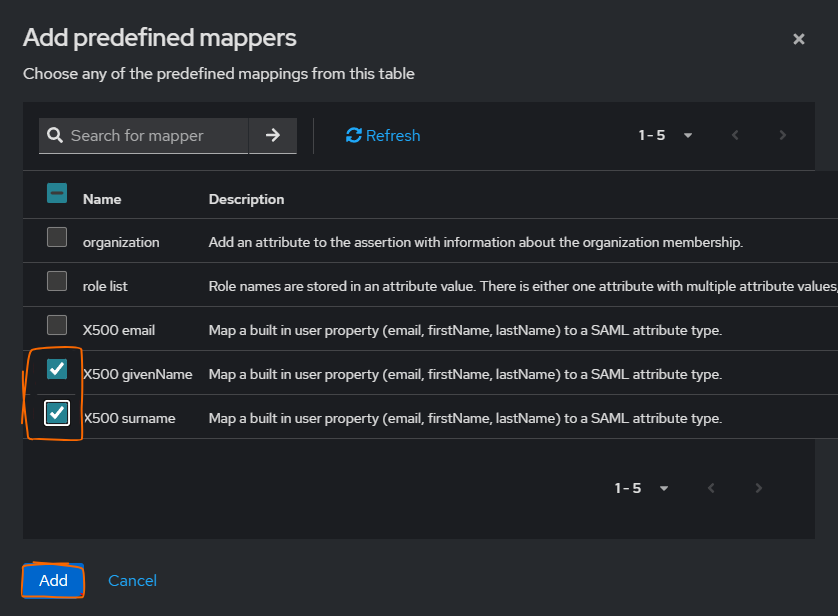
A pop-up will appear. Select the givenNme and surname mappers. Then click add to finish the configuration.
Test connection
When adding a SAML provider, you have the option to test it before saving it. Testing helps you check whether everything is set up correctly and prevent a situation where users cannot log in via SAML after you configure it. You can test it using the Test SAML authentication button.

You can also test existing SAML configurations. To do so, click the three dots next to an authentication method you want to test and select Test SAML authentication.

No matter which option you choose, you will then see a popup with a Dataedo log-in page. You should log-in using SAML. After this log-in, you will see a screen with the results of the test.

The checks are as follows:
- Provider connection — if it passes, it means that the metadata you provided is correct, and a SAML sign-in request could be created.
- Sign in at the Identity Provider — a success means that Portal was able to successfully authenticate using your credentials. If it fails, it probably means that you do not have the necessary permissions in the Identity Provider.
- Returned to the application — if it passes, it means that a return address is correctly configured. This step can return errors if you close the popup window before all the checks can run
- Response valid — this checks whether the connection was secure.
The remaining two checks are not a pass/fail check; instead, they return warnings regarding easy-to-overlook details. If you see a warning, analyze it carefully to make sure that the outcome is what you intended. If not, make sure to fix the issues within your Identity Provider.
User Access in Portal — this warning will show up when the email you used to check the SAML connection could successfully authenticate, but raised issues in Dataedo. The account (matched via NameId) might for example lack Admin rights, or exist in SAML but not have a corresponding Dataedo user.
Groups — this warning shows up when a group that is configured in your Identity Provider is not mapped to any Dataedo groups. This means that some intended permissions might not be automatically assigned to users, e.g., a Stewards group in your Identity Provider is meant for Data Stewards, but is not mapped to any Dataedo group carrying the corresponding permissions. Members of the Stewards group in your Identity Provider will not get the desired permissions.
At the bottom of the SAML test result page, you will see a SAML server response button. Clicking it will show a response, if you are encountering errors, you can copy the response and forward it to your organization's IT specialist.
Configure Dataedo Portal (Docker Deployment)
-
Locate your
.envfile in the same folder asdocker-compose.ymland update the SAML configuration:Single sign-on configuration in docker-compose.yml# This sample contains inline comments for explanation purposes.
# Remove all comments (#) before using this configuration in your environment.
# In the DATAEDO_SSO_IDP_METADATA field, paste the link to your Realm metadata file, which can be found in the Admin portal under the Realms Settings section.
# Click on SAML 2.0 Identity Provider Metadata and copy the URL. Alternatively, download it directly from:
# https://KeycloakServerURL.com/auth/realms/<REALM>/protocol/saml/descriptor
DATAEDO_SSO_IDP_METADATA="https://KeycloakServerURL.com:/realms/master/protocol/saml/descriptor"
# In the DATAEDO_SSO_ISSUER field, paste the address specified earlier in the Identifier field in Keycloak.
# This can be checked in the Admin Portal under the Clients tab.
DATAEDO_SSO_ISSUER="DataedoSSO"
# If required, correct the signature algorithm if you’re not using RSA_SHA256.
# For RSA_SHA1, use: http://www.w3.org/2001/04/xmldsig-more#rsa-sha1
DATAEDO_SSO_SIGNATURE_ALGORITHM=http://www.w3.org/2001/04/xmldsig-more#rsa-sha256
# Certificate validation mode. Default is ChainTrust.
DATAEDO_SSO_CERTIFICATE_VALIDATION_MODE=ChainTrust
# Revocation mode. Default is NoCheck.
DATAEDO_SSO_REVOCATION_MODE=NoCheck
# In the DATAEDO_SSO_DISPLAY_NAME field, enter the name shown when logging in to Dataedo for the Identity Provider.
# DisplayName cannot contain spaces; use underscores (_) instead.
DATAEDO_SSO_DISPLAY_NAME="Keycloak_SAML"
# In the DATAEDO_SSO_CLIENT_URL field, make sure it correctly leads to your Dataedo Portal address.
DATAEDO_SSO_CLIENT_URL="https://yourwebsite.com/" -
Run the following command to apply the changes:
docker-compose up -d -
Open Dataedo Portal. The Keycloak SAML login option should now appear.
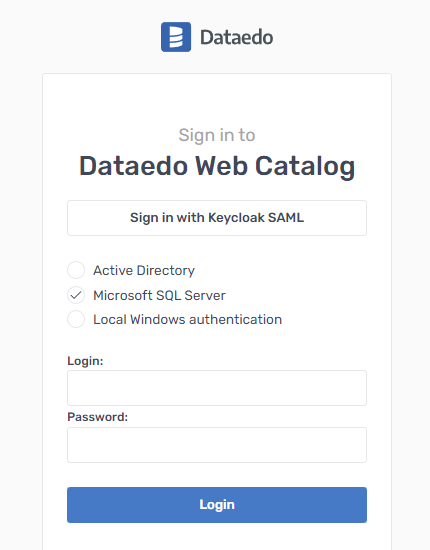
With these steps complete, your Dataedo Portal will now integrate with Keycloak SAML. Log in to verify the configuration!
Need help?
If you run into any problems or have questions, reach out to Dataedo support.

